

Tiles
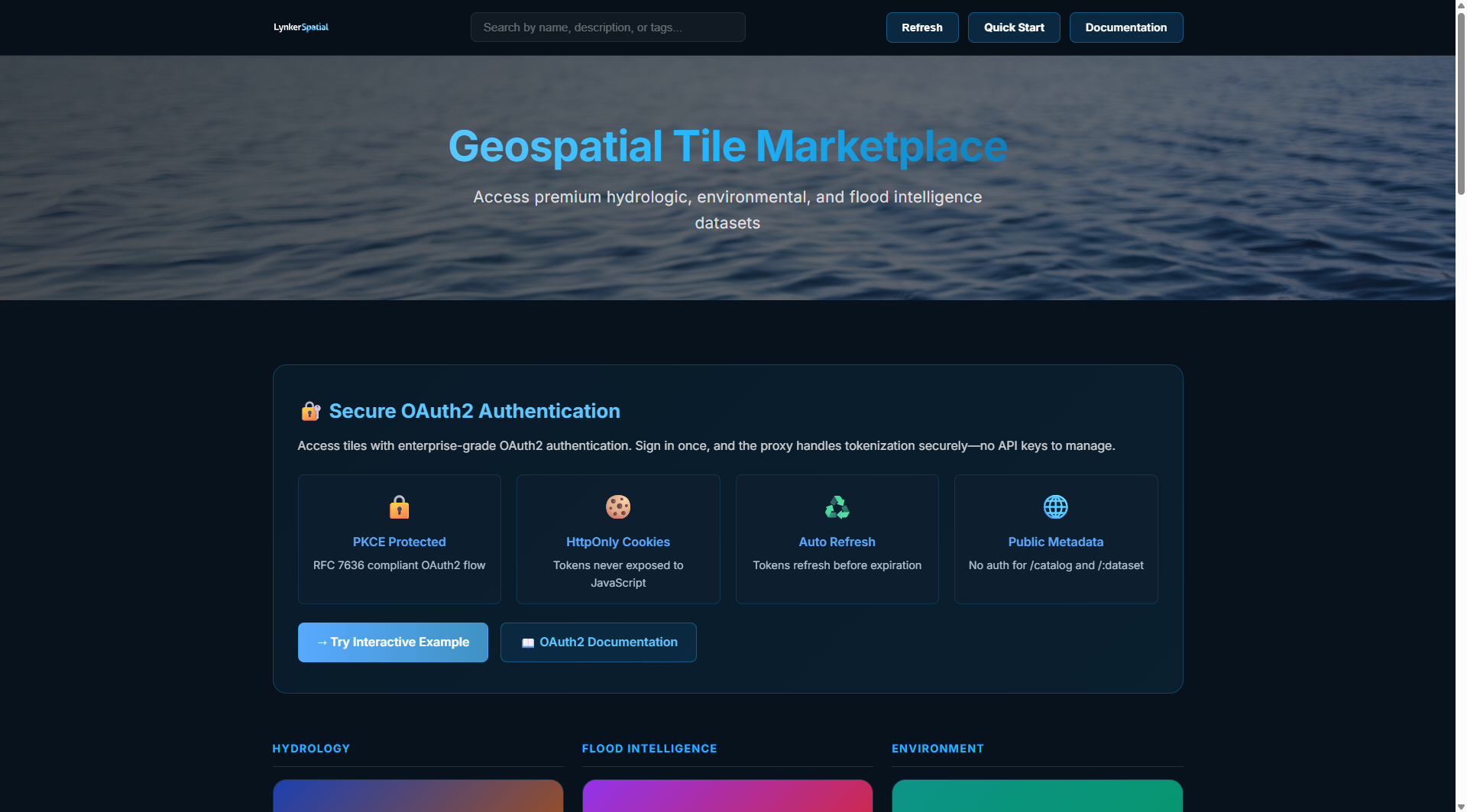
The Lynker Spatial Tile marketplace provides cloud-hosted vector and raster tile datasets (such as the Modeling Hydrofabric, Continental Rivers, and National Wetlands) optimized for web and desktop applications. All data is served in Protocol Buffer (PBF) format and requires JWT Bearer token authentication. This quickstart guide will help you quickly set up your account, authenticate, and pull your first tile from the Lynker Spatial Tile Service! For more details see the more extensive tiles documentation.
Step 1: Log into your Lynker Spatial data proxy Account
- Visit the Lynker Spatial Authentication Portal (see the Authentication quickstart for more details) to sign in.
Step 2: Get Your Access Token
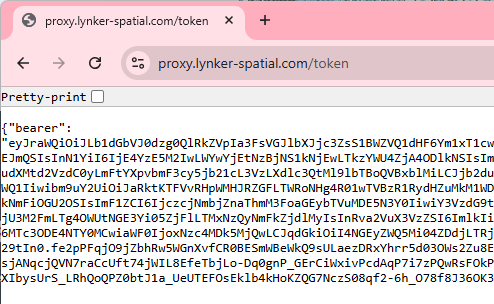
Access to the Map Tiles requires a JWT Bearer token. Tokens are user-specific and expire after 1 day (Refresh tokens last 30 days).
You can retrieve your token programmatically using Python (boto3), or you can copy it directly from your active session in the authentication portal.
Navigate to: https://proxy.lynker-spatial.com/token to find the relevant token you'll need.
Step 3: Verify Service Access
Once you have your token, export it to your environment and verify the connection by calling the catalog endpoint. An easy way to test this is in the command-line:
set "LYNKER_TOKEN=<your_token_here>"

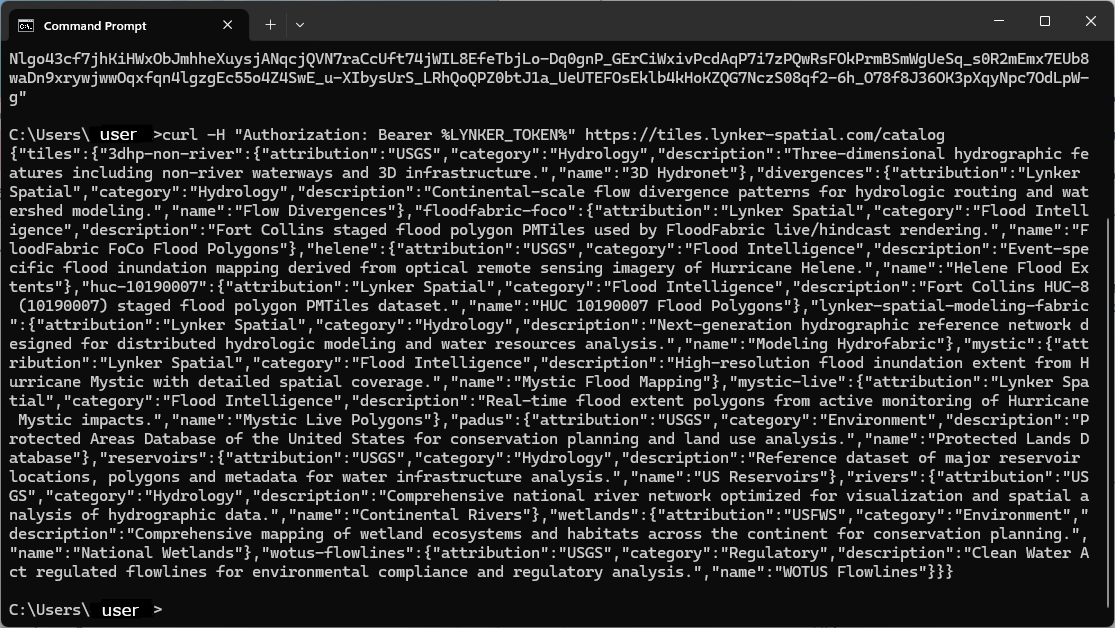
curl -H "Authorization: Bearer %LYNKER_TOKEN%" https://tiles.lynker-spatial.com/catalog
If you've done this correctly it should print out a list of the available tiles like so:
Step 4: Integrate into your workflows!
Use your token to request a tile from the lynker-spatial-modeling-fabric dataset. Note that tile requests do not need the .pbf extension in the URL.
To use the tiles within a QGIS session:
- Open QGIS and go to Layer → Add Layer → Add Vector Tile Layer
- Click the New button to create a new connection
- Enter connection details:
Name: Lynker Hydrofabric
URL: https://tiles.lynker-spatial.com/api/tiles/lynker-spatial-modeling-fabric/{z}/{x}/{y}- Go to the HTTP Headers tab and add custom header:
Header Name: Authorization
Header Value: Bearer <your_token_here>- Click OK and save the connection
- Select the connection from the list and add the layer
- Configure symbology by right-clicking the layer → Properties → Symbology
Find more information on how to use the Lynker Spatial gridded data packages at its quickstart here, or see how you can apply the flowfabric-api to gain Hydro-intelligence on their associated quickstarts.